 TabPurr
On Windows or Linux, press Ctrl + Shift + T. On a Mac, press Command + Shift + T. Repeat to reopen earlier recently closed tabs in reverse order. For a closed window, also check Chrome’s menu → History → recently closed windows.
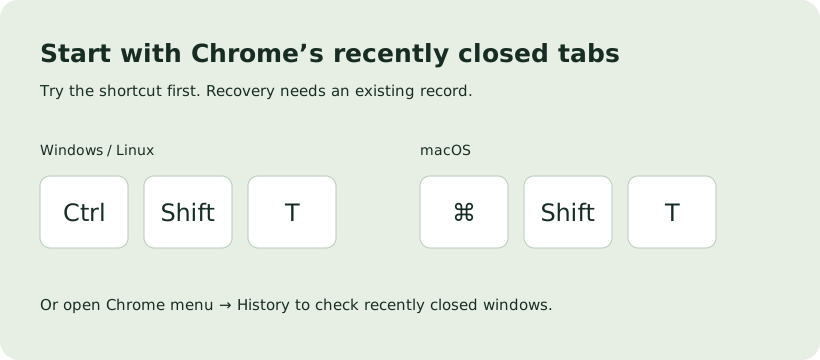
How to restore recently closed Chrome tabs
- Open a normal Chrome window in the same browser profile.
- Use the reopen shortcut above, or open the Chrome menu and choose History.
- Look for your recently closed tab or a closed-window entry with multiple tabs. Open the matching entry if it is still available.
- If the recent list no longer contains it, search your browsing history for a title or website you remember. History is a list of visited URLs; it may not preserve the original window arrangement.
These options depend on the records Chrome still has. Incognito pages are not kept in normal browsing history after the private session ends. Clearing history or deleting a browser profile can remove recovery sources.
Restore Chrome tabs after a restart or crash
If Chrome offers a Restore prompt after an unexpected shutdown, use it. Otherwise check recently closed windows and History. For future normal launches, Chrome’s Settings → On startup → Continue where you left off can reopen the previous session; it is a startup preference, not a separate archive of every past session.
Do not clear browser data or remove a profile while trying to find its tabs. A new extension installed after the loss has no saved record of that earlier session.
Reopen a saved TabPurr workspace or backup
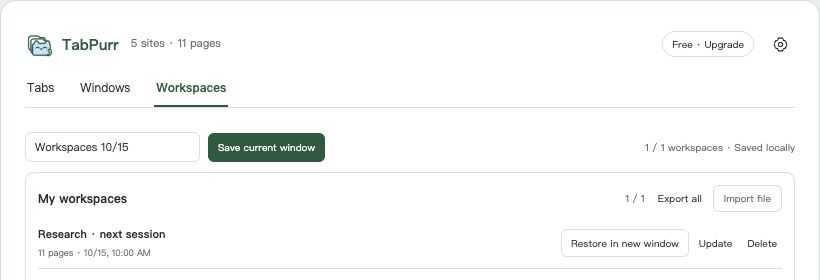
- Open TabPurr and select Workspaces.
- For a named workspace, choose Restore in new window. It reopens saved titles and URLs, up to 200 supported HTTP(S) pages per workspace.
- For a manual backup or automatic history entry, inspect the available record and use its restore control. Automatic protection must have successfully saved a record before recovery is possible.
- If you exported a TabPurr JSON library earlier, import that file and review the import summary before restoring. Import adds supported records; it does not recreate missing data from the web.
Restoring records and full JSON import/export are available in Free. Free retains 1 named workspace, 1 recent manual backup and up to 3 automatic records. Pro expands these limits to 50, 3 and 24; local storage limits also apply. With automatic grouping enabled, reopened workspace pages group by website.
Save Chrome tabs for later: the complete workspace workflow →
What tab recovery can and cannot restore
| What you still have | Try this | Boundary |
|---|---|---|
| Recently closed list | Chrome shortcut or History | The entry must still be available in that profile. |
| Named workspace | TabPurr → Workspaces → restore | Reopens saved URLs; no unsaved forms or full page state. |
| Local backup or exported JSON | Restore or import the existing record | Only successfully recorded pages are available. |
| No history, workspace, backup or export | Search remembered sites and rebuild the list | TabPurr cannot guarantee recovery without a record. |
Questions about restoring Chrome tabs
Can I restore tabs Chrome never saved?
TabPurr cannot. Check Chrome’s recent list or History for an independent record. If neither Chrome nor an existing backup contains a page, installing TabPurr now cannot discover that earlier tab.
Will my forms, logins and scroll positions come back?
Named workspaces store titles and URLs, not the complete state of a page. Login continuity depends on the website and your existing browser session. Unsaved form text and scroll positions are not part of a workspace.
Is reopening tabs the same as restoring a backup?
No. Chrome’s reopen command uses recent browsing-session records. A TabPurr workspace is a named local URL list; a backup snapshot can retain more tab-group structure. Choose the source that actually contains the pages you need.
Does restoring need Pro?
No. Restoring available records is free. Pro increases workspace and backup capacity and adds bulk window tools.