 TabPurr
Give background pages a break to free memory
TabPurr uses Chrome’s tab discard operation for the eligible pages of the selected registered website in the current browser window. A discarded tab remains in the tab bar and in the website tree. Its title and site remain visible, title and URL filtering still work, and opening the tab asks Chrome to load the page again.
Suspending keeps a site’s tabs in place while releasing memory used by its pages. To put a whole project aside for later, save a workspace instead. Save unfinished work before suspending: forms and live page state can be lost on reload. Memory savings depend on your pages and device.
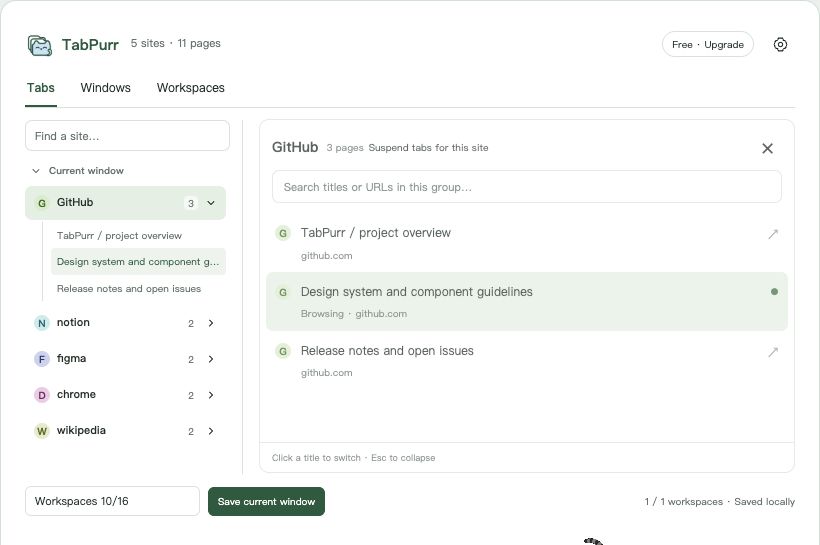
How to suspend a website’s background tabs
- Open the TabPurr popup from Chrome’s toolbar.
- Choose a website in the site list. The panel shows that site’s page titles and URLs.
- In the website panel header, beside the page count, choose Suspend tabs for this site. The button is disabled when the site has no eligible tab.
- Wait for the result message. TabPurr reports how many tabs were suspended, skipped, or failed so you can see which pages have paused.
- Keep browsing. When you need one of those pages, click its title in the site tree or the Chrome tab. Chrome reloads the discarded page.
The optional on-page mascot provides the same site-tree entry when you have enabled it and granted website access. Its site panel also exposes the suspend control. The toolbar popup is the simplest place to see the full title list and the result counts.
Which tabs are protected?
The action is deliberately narrow. TabPurr checks the selected site in the current window, then checks each tab again immediately before asking Chrome to discard it. These states are skipped:
| Tab state | Result | Why |
|---|---|---|
| Active | Skipped | The page you are currently using is left alone. |
| Pinned | Skipped | Pinned tabs remain part of your fixed tab area. |
| Playing audio | Skipped | An audible page may be in active use. |
autoDiscardable is false | Skipped as protected | Chrome reports that automatic discarding is disabled for that tab. |
| Already discarded | Skipped | There is no second discard to perform. |
| Changed during the operation | Skipped as changed, or counted as failed if Chrome rejects the discard | The final report follows the tab state that actually existed at execution time. |
A tab in another window is outside this action, even when it belongs to the same website. TabPurr does not move tabs, close windows, or trigger an automatic regroup while suspending.
Suspend, save, or close?
| Choose | What happens | Use it when |
|---|---|---|
| Suspend by site | Eligible tabs stay in Chrome and reload when opened. | You want to pause a site’s background pages and keep their place in the window. |
| Save a workspace | TabPurr stores page titles and URLs locally, up to 200 supported HTTP(S) pages per workspace, for a later restore into a new window. | You want a named project checkpoint that you can deliberately reopen. |
| Back up a snapshot | An existing local snapshot can retain captured URLs, native group structure and supported tab attributes, not the running page. | You want a record of what was captured at a particular moment. |
| Use Chrome’s Memory Saver | Chrome provides its own browser-level memory feature. | You want to compare the built-in browser option; read Chrome’s current documentation for its settings and behavior. |
Discarding releases the page’s live renderer. Tab titles and URLs remain visible, but unsaved form input, scroll position, playback state, and other running page state are not guaranteed to survive a reload. Whether a website keeps you signed in depends on that website and the browser session already in place.
Learn how to save a Chrome window as a workspace → Need a tab back? Choose the right recovery method →
Troubleshooting
- The suspend control is disabled: the selected site may contain only the active tab, pinned tabs, audible tabs, protected tabs, or pages already discarded. Choose another site or use the page after its state changes.
- Some tabs were skipped: read the result count. TabPurr skips protected states and rechecks tabs during the operation, so the final number can be lower than the initial list.
- The tab looks faded or says Suspended: that is the expected discarded state. Click its title to ask Chrome to reload it.
- The page reopened without my draft: a reload is not a session restore. Unsaved page state can be released when Chrome discards the renderer.
- You wanted to remove the tabs from the window: use a workspace or Chrome’s own close/bookmark workflow instead. Suspend leaves the tabs in place.
Questions about suspending Chrome tabs
Does suspending close or save my tabs?
No. Eligible tabs stay in their current Chrome window and group. Suspending does not create a workspace or backup; it asks Chrome to discard the page renderer until the tab is opened again.
Can I suspend every tab for this website in every window?
No. The action is scoped to the selected registered site in the current browser window. Tabs in another window are left alone.
Will a suspended page keep my form and login state?
There is no guarantee for unsaved form input, scroll position, media state, or other live page state. The URL and tab remain, and login continuity depends on the website and the existing browser session.
Do Chrome tab groups save memory?
Grouping keeps tabs organized; suspending releases memory used by eligible background pages. A group header alone does not mean its pages have been suspended. Choose the site suspend action when you are ready to pause those pages.
Is suspending free?
Yes. Suspending tabs by site is available in Free and Pro. The action is separate from Pro window tools and backup capacity.
What is Chrome’s built-in alternative?
Chrome also documents its Memory Saver feature. It is separate from TabPurr’s site-level control; see the official guide below for the current browser options.