 TabPurr
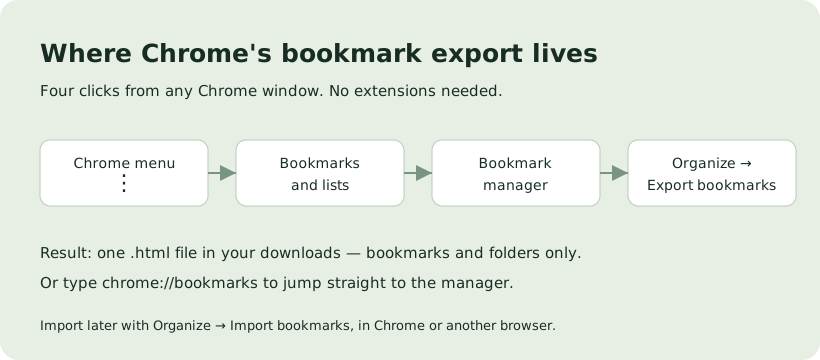
Open the bookmark manager (chrome://bookmarks), click Organize at the top, and choose Export bookmarks. Chrome saves one .html file containing every bookmark and folder in the current profile. Nothing is deleted, and nothing is uploaded anywhere.
Choose what to export
| You want to | Use | What you get |
|---|---|---|
| Move bookmarks to another browser or computer | Chrome's native bookmark export | One standard .html file with bookmarks and folders |
| Back up the bookmark library as a file | The same native export, kept somewhere safe | A portable copy you can re-import later |
| Save the tabs that are open right now | Chrome's bookmark all tabs shortcut, or a TabPurr workspace | A folder of links, or a named workspace you can reopen as a window |
| Export a tab set with titles and URLs | A TabPurr workspace exported as JSON | A local JSON list of up to 200 supported pages per workspace |
| Archive tab-group structure, not just links | A TabPurr backup snapshot exported as JSON | Captured tabs with the native group structure present at capture time |
Export bookmarks, step by step
- Open Chrome on Windows, macOS, or Linux. Bookmark export is a desktop-browser feature.
- Open the bookmark manager: click the Chrome menu ⋮ → Bookmarks and lists → Bookmark manager, or type
chrome://bookmarksin the address bar. - Click Organize at the top of the manager.
- Choose Export bookmarks.
- Chrome writes one
.htmlfile to your usual download location. Move it somewhere you will actually find it again.
This way to export Chrome bookmarks covers the current Chrome profile: the bookmarks bar, other bookmark folders, and their subfolders. It does not remove or change anything in the library; it writes a copy.
What the HTML file contains
| In the exported file | Not in the exported file |
|---|---|
| Every bookmark in the profile: title and URL | Open tabs or windows |
| The folder structure, including the bookmarks bar | Tab groups and window layout |
| A standard bookmarks HTML format other browsers can read | Passwords, cookies, history, extensions, and site data |
Bookmarks and open tabs are different records in Chrome. When you export Chrome bookmarks, the file describes your library; it does not include your current session. If that is the goal, continue to Exporting tabs instead.
Import bookmarks back in
- Open the bookmark manager on the target browser profile.
- Click Organize and choose Import bookmarks.
- Select your exported
.htmlfile and check where the imported bookmarks landed before you tidy them.
The same HTML file can be imported by other major browsers, which is why the native export is the right tool for moving a bookmark library between browsers or machines.
On Android or iPhone
Chrome's mobile apps do not offer a bookmark export. Sign in to Chrome on desktop with the same Google account and turn on sync; your mobile bookmarks then appear in the desktop profile's Mobile bookmarks folder, and you can export them from there using the steps above.
When you meant open tabs: export a workspace or backup
If the thing you want to keep is a working set of pages rather than a bookmark library, TabPurr has two local export paths. Both write JSON files on your machine; nothing is uploaded.
- Workspace export: a named workspace stores page titles and URLs, up to 200 supported HTTP(S) pages. Export it as JSON at any time and import it later, in the same or another Chrome profile on the same machine boundary you choose.
- Full library export: one JSON file with your workspaces, backup pools, and a settings whitelist. License material is not included. Import shows a preview before anything is written.
Reading, restoring, importing, and exporting local records are available in Free. Free keeps 1 named workspace, 1 recent manual backup, and up to 3 automatic records; Pro raises those to 50 workspaces, 3 manual backups, and 24 automatic records.
Save Chrome tabs for later: the complete workspace workflow →
Troubleshooting and questions
- Cannot find Organize: make sure you are in the bookmark manager (
chrome://bookmarks), not the bookmarks side panel of a normal page. - The file is gone: check your browser's download list and the Downloads folder; re-run the export, it is non-destructive.
- Bookmarks look missing after import: imported entries often land in their own folder; look through the folder list before assuming a loss.
- Exported HTML is huge: it grows with the library. It is plain links and folders; archiving a copy is normal backup practice.
Questions about exporting Chrome bookmarks
Does exporting bookmarks delete them or upload them?
No. The export writes a local copy as one HTML file. Your bookmark library stays as it is, and no data leaves your machine through this feature.
Can TabPurr export my Chrome bookmarks?
No, and it does not try to. TabPurr works on tabs: named workspaces, backup snapshots, and their JSON exports. Bookmarks stay in Chrome's own system; use the native export above for those.
HTML or JSON, which backup should I keep?
Keep the HTML export for your bookmark library, especially when moving browsers. Keep TabPurr JSON exports for tab projects and captured group structure. They record different things.
Can I export bookmarks from Chrome on my phone?
Not directly. Sync the account to a desktop Chrome profile first, then export there. See On Android or iPhone.
Will the export include my passwords or history?
No. The bookmark export contains bookmarks and folders only. Passwords and browsing history are separate systems with their own export tools.